ipfs.com| Personalize the site settings
Related Articles |
| Admin FAQ's |
| Integration Features |
| Setup Users |
| Branding your experience |
| eForms Settings |
| Fee Disclosure |
The Admin role controls access, permissions and settings on ipfs.com. The Admin Menu is only visible to users with the role of Admin.
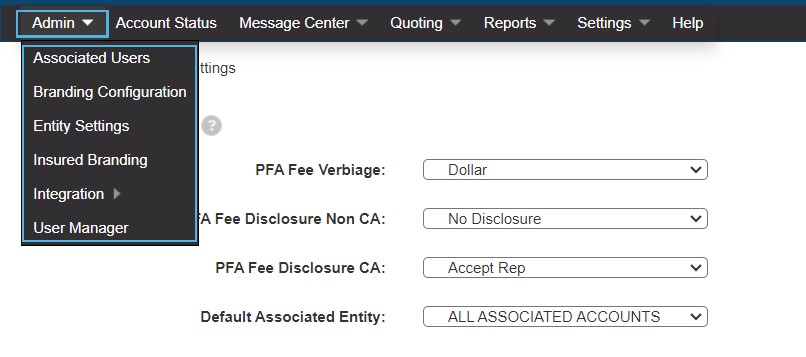
Associated Users
These users have multiple logins, and through associations can use one login to access all. Add users and assign the roles or request your account executive assist with this task.
Click to download  Associating Locations.pdf
The Web Access Code (WAC) and zip code for the associated location is required, along with the email of the user. Select the roles for the user.
- Note that when adding an associated user, it is a one way association. If the user requires access to both locations, each location must associate the user.
- Example: To add an associated user to Demo Agency, for Test Location, click add on the Associated User Screen from within the Demo Agency login. Test Locations WAC and zip code is required.
- To add an associated user to Test Location, for Demo Agency, click add on the Associated User Screen from within the Test Location login. Demo Agency WAC and zip code is required.
- Example: To add an associated user to Demo Agency, for Test Location, click add on the Associated User Screen from within the Demo Agency login. Test Locations WAC and zip code is required.
The user will receive an email that contains a link to click to complete the association.
Branding Configuration
See the Branding Configuration - control your experience article to fully configure the branding experience.
Entity Settings
- Fee Disclosure: This controls where the PFA Fee Verbiage is located and how the language is displayed.
- The verbiage can be displayed as a dollar, % of Amt Financed, % of Finance Charge, Generic or Reimbursement.
- The disclosure for California and Non California can be set separately.
- Non California includes options of No Disclosure, Accept Rep, Front of PFA, Back of PFA or Letter. California does not include a "No Disclosure" Option.
- Default Associated Entity can be applied to the account. The entities users have access to can be selected when quoting, in quote and account status screens and in reporting. Some areas allow access to all entities data.
- Email: Choose the type of email communication - each communication is defined. Note that entering the insured email during quoting is required. Elect to use the same settings for integration.
- AutoPay Options - offer ACH and/or Credit Card AutoPay options for the insured.
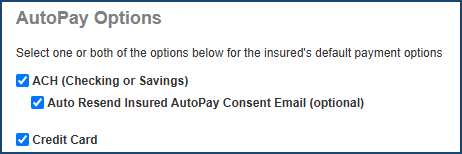
- Auto Resend Insured AutoPay Consent Email will send the insured reminder emails to consent to AutoPay enrollment.
- Emails will be sent on Monday, Wednesday, and Friday. The email will be sent a maximum of six times.
- Account Managers can setup AutoPay via Credit Card from the Account Details if enabled.
- Auto Resend Insured AutoPay Consent Email will send the insured reminder emails to consent to AutoPay enrollment.
Insured Branding
This is a simple logo and address branding option. For a fuller branding experience see Branding Configuration.
Integration
The Integration Features article describes the process and features.
User Manager
Customize individual user experiences through the Setup Users article.
The information contained herein is confidential an proprietary. Recipients will respect the confidentiality of this material and not disclose to any third party any of the contents of this document without first obtaining written approval from IPFS. Copyright © 2026 IPFS Corporation. All rights reserved. 09/11/26