ipfs.com| Working with Saved Quotes
Related Articles |
| Create a New Quote |
| eSign Status |
| Pending Exception Status |
| Quote FAQ's |
Quote Status provides a simple search feature to help you manage workflow and gather real time data on the progress of the eSign and payment collection.
Click to download  Managing Quote Status.pdf
Associated Entity is available when working with multiple logins. Choose the entity to work with from the dropdown. Note: some dropdowns include ALL entities to view data across all locations.
Default view is "status" of All Active Quotes, "grouped by" copy. When paying in full you can change the filter to group by batch.
Status Filters include:
- All Active Quotes
- All Quotes and Recently Booked
- eSign - eSign Status
- Pending Exception - Quotes with an Exception Status. Displays the exception initially triggered. (Lowered Down Payment, Credit Review etc.) Pending Exception Status
- Paid in Full - Quotes that were fully paid through IPFS TotalPay and not financed.
- All Active Quotes
- Inactive Quotes and Loans
- Recently Booked - displays "Loan booked" and the Acct# column contains the account number.
- < 45 days from current date, however if > 45 the line item will maintain last eSign Status and the Acc# column contains the account number.
- eSign - Groups all quotes in an eSign status, this will include loans that have been booked >45 days from today.
- Display the account number with the last eSign status noted. Sort by account number to push them to the bottom of the listing.
- Inactive Quotes are >120 days or have been revoked. Accounts that have a zero balance are also considered inactive accounts.
- An account moves to zero balance status 30 days after the balance is reduced to $0, including all charges paid. They are found in Inactive Quotes and Loans.
Workflow Tips
- Use the Action column to View the PFA or View Payment Options (eSign and Pay). Email Again allows you to email the insured the eSign and Payment request if a payment has not been made (available for Awaiting Statuses).
- Create Quivit Package is available for Quivit® users.
- If "Policy #" and "Customer #" are turned on, the two columns will be available after "Quote#"
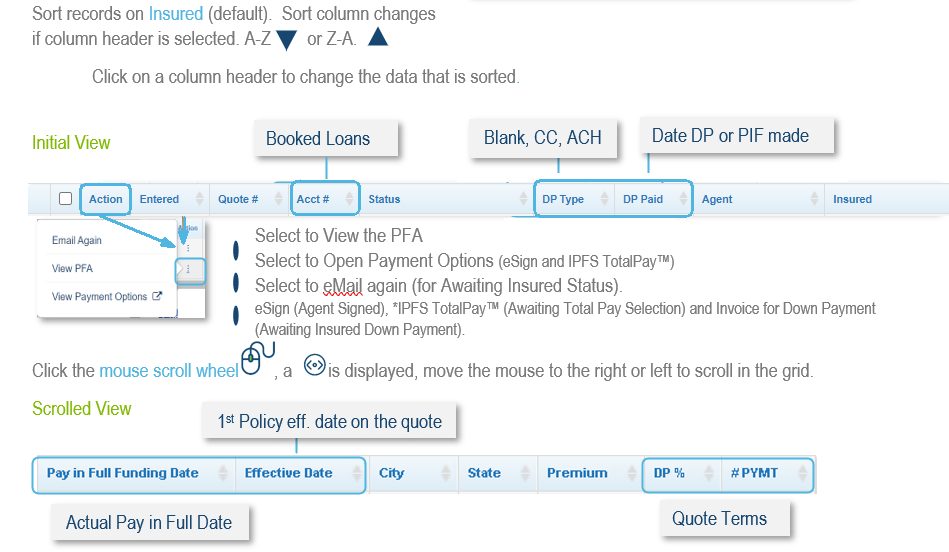
- Click on any column header to filter and/or sort by that column. Combine that with status filters to narrow your scope.
| Follow Up with Insureds |
Change the Status to eSign and click the Status column to sort by or filter by selecting contains and type "Awaiting Insured to see outstanding eSign and/or Payment". |
| View Specific Quotes |
Click on Insured or Customer # column and then click Contains, and enter the data. |
| Find Recent Quotes |
Select Entered column to sort by the date the quote was added. |
| View Specific Premium ranges |
Sort by Premium and use < > or = and enter the premium amounts |
| Find a Specific Policy Number |
Click on Policy Number column and use Contains or Starts with, and enter the policy number. |
The information contained herein is confidential an proprietary. Recipients will respect the confidentiality of this material and not disclose to any third party any of the contents of this document without first obtaining written approval from IPFS. Copyright © 2026 IPFS Corporation. All rights reserved. 09/11/26