ipfs.com| Account Detail and Management
Related Articles |
| Account FAQ's |
| Account Status Defined |
| Hold an Account |
| Create a Renewal Quote |
| Create an AP Quote |
| Feature Eligibility |
| Recurring Credit Card |
Data points are available in one location, including insured contact, underwriting and loan details.
Print account details, an invoice, or email the account details using the top right Print or Email links.
Click to download  Managing Accounts.pdf
Account Data Display
- Credit field contains the amount of an over payment (negative amounts) or underpayment that is due to IPFS (positive amounts).
- Maturity Date is the last payment due on the account.
-
Default Charge is created when an account cancels. The amount is based on State Regulations.
- Installment Amount represents what is due on the account each month. Late charges, NSF or default charges are not included. To see the total amount due go to the Due Now tab.
Manage Accounts
-
Agent Information contains the agreement creator's details. If you are an associated user who can see other user quotes, this information may be different from your details.
- Insured email, address or cancellation warning alerts can be updated with the Edit feature.
- Changing the email address will not override electronic delivery of eForms (if setup).
- Please advise the insured to update their settings on ipfs.com or contact the branch.
- Cancellation warning text is sent out at the time of intent. The email is sent out 5 days prior to cancellation.
- An insured who has discontinued alerts by texting STOP can reinstate alerts by texting START to 9135686008.
- Cancellation warning text is sent out at the time of Intent. Email is 5 days prior to cancellation.
- Changing the email address will not override electronic delivery of eForms (if setup).
- Calculate a Payoff through Due Now. The full amount due to bring an account current or to payoff an account, is provided.
 Select to view onscreen guidance
- The amount due includes any credits on the account, charges or fees and any past due payments.
- The Payoff date defaults to 10 days. The date selected cannot be prior to the first installment or exceed the Maturity date (last payment due date).
- The asterisk near Interest/Fees signifies that there is a processing fee.
- Viewing additional details
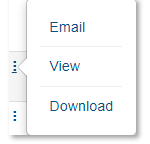
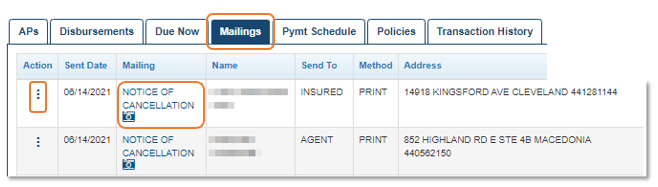
- Mailings for parties to the deal. When enabled, using the three ellipse you can download, view and email notices. TIP: the date on the notice will reflect the date you performed the action. Original dates are in the "sent date" column.
- Disbursement details including Amount, Pay to, Name, Pay date and how it was funded. This is typically ACH, but can be a check which includes the check number and status of funding.
- Review the Payment Schedule including payment dates and paid dates.
- Quickly see the Account, AP Accounts accepted Date, Premium and First payment due date in the AP's tab.
- Transaction History details all monetary transaction on the account.
- Bump is a term used to reflect the number of payments that the funds are applied to.
- Types can include Regular Payment, Late Fee, Waived, Retained Payment, Pymt Corr [corrections or changes] Payoff and Fin Adj.
- Source notes the payor.
- Fee transactions may be visible depending on rights granted and eligibility.
- Update the Policy Number. Updating Policy Numbers.pdf.
- Once you save the changes it is submitted. When the change is completed, the new policy number is visible on ipfs.com.
click for onscreen guidance
- Once you save the changes it is submitted. When the change is completed, the new policy number is visible on ipfs.com.
- Mailings for parties to the deal. When enabled, using the three ellipse you can download, view and email notices. TIP: the date on the notice will reflect the date you performed the action. Original dates are in the "sent date" column.
Features
Some features are available directly from the account details. What is presented is determined by the status of the account and are displayed as blue buttons.
Renew AP Hold Initiate AutoPay ACH Enroll Card Pay Now
- Create a renewal (RENEW), or an additional premium (AP) quote.
- Place an account on Hold. Provider Holds cancellation .pdf
- Initiate AutoPay ACH for the insured. You will be notified via email when the insured has provided consent or declined AutoPay enrollment and/or when the link to consent is set to expire or has expired.
- Set up or change Recurring Credit Card payments through Enroll, Unenroll, or Update Card.
- Make Payments through Pay Now. Provider Pays Online.pdf
The information contained herein is confidential an proprietary. Recipients will respect the confidentiality of this material and not disclose to any third party any of the contents of this document without first obtaining written approval from IPFS. Copyright © 2026 IPFS Corporation. All rights reserved. 09/11/26